Find the Wednesday donation box
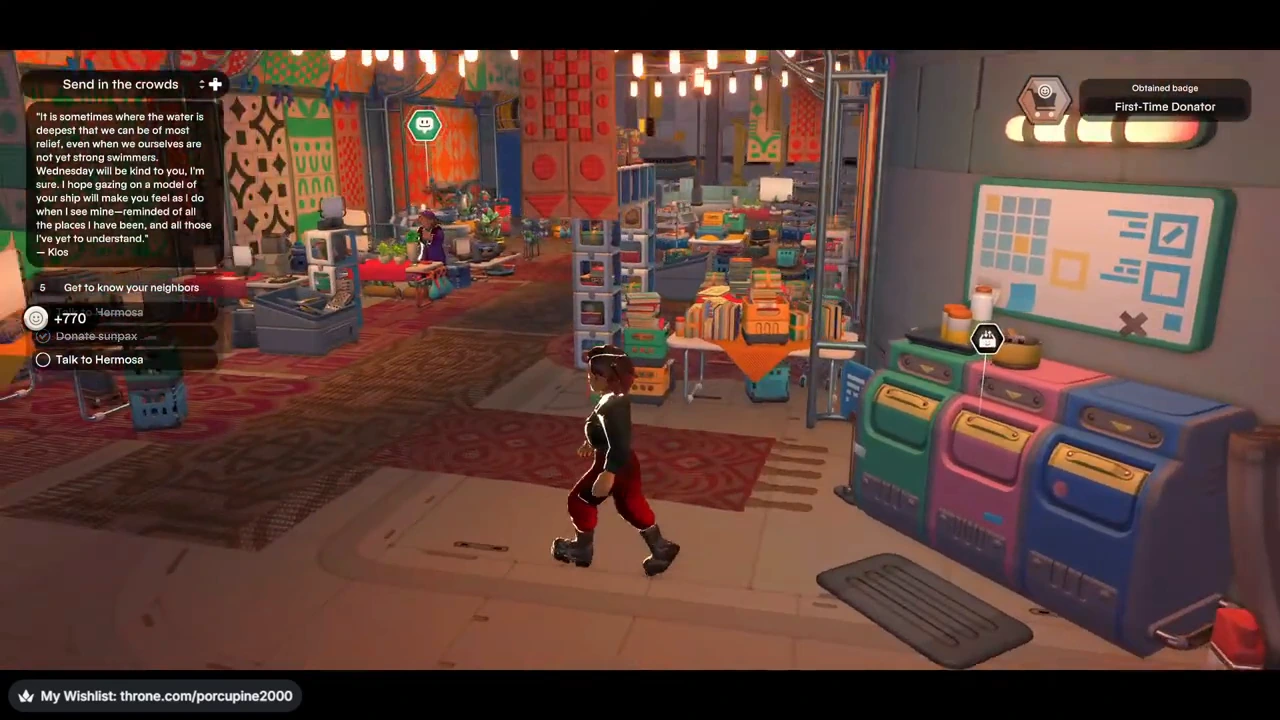
At Wednesday’s craft stalls, look for three adjacent green, pink and blue containers against the curved wall, beneath a board and lamp. The nearby stall has orange fabric and tall shelves of small boxes. Approach the containers until Donation box — Donate items appears; the recorded controller prompt is X.
Station donations exchange spare inventory for Gratitude, according to the launch interview.
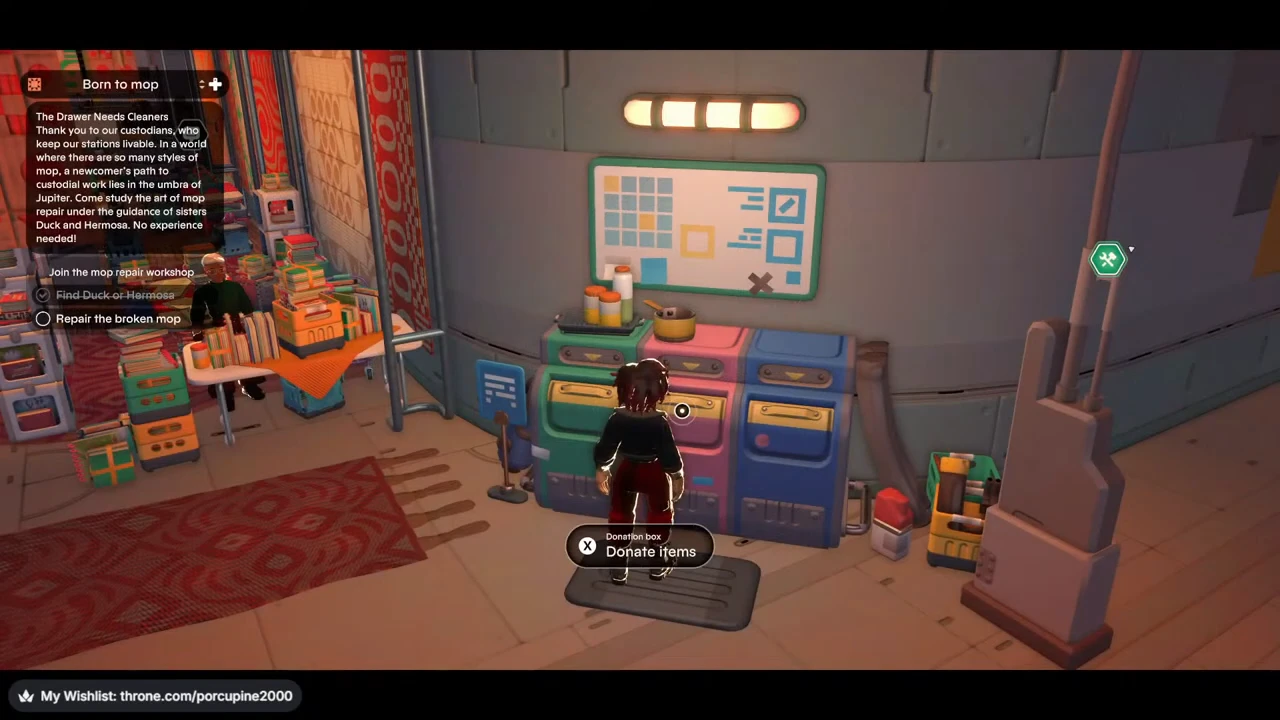
1. Inspect the item before staging it
Follow Hermosa’s Donate sunpax objective to the donation box. The left panel is your Backpack, the middle panel holds the staged donation, and the right card describes the highlighted item. In this example, Sunpax has a quote of 770, the selected backpack stack holds four, and the empty Donation Box total is zero.
The controls distinguish A Select from X Select stack. Use the single-item action when you intend to give one. Highlighting an item only displays its quote; it does not donate it.
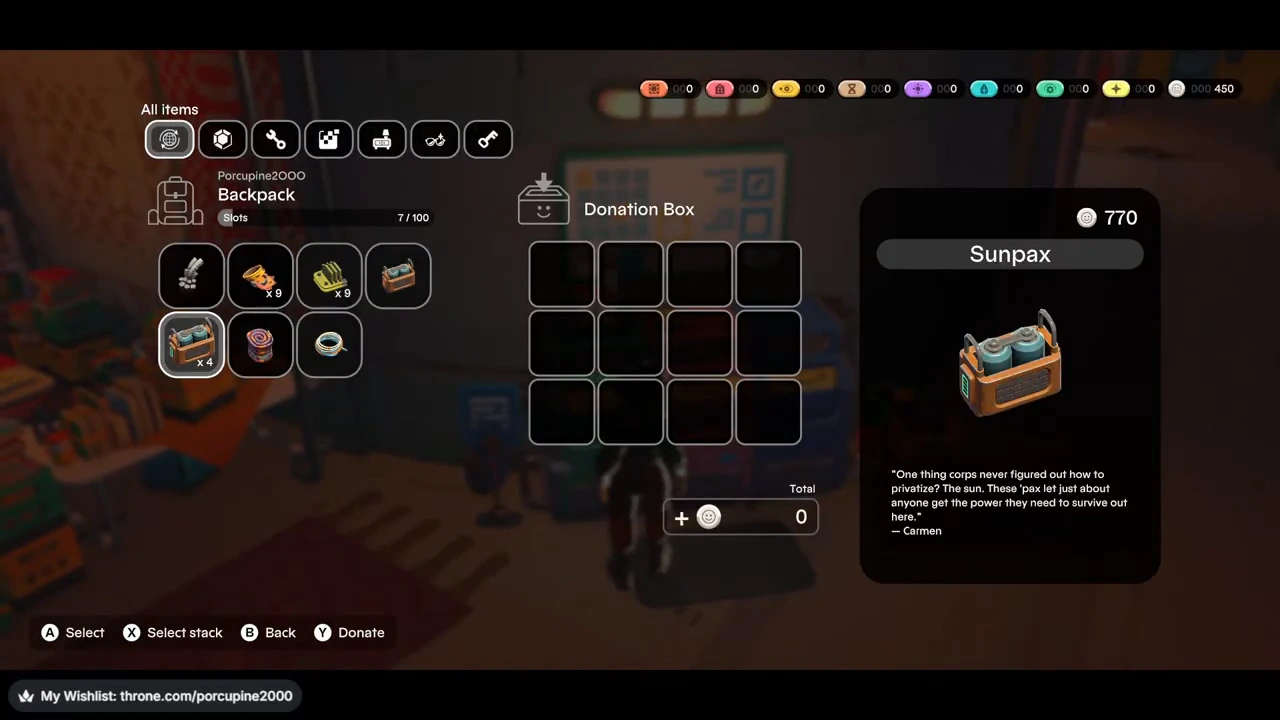
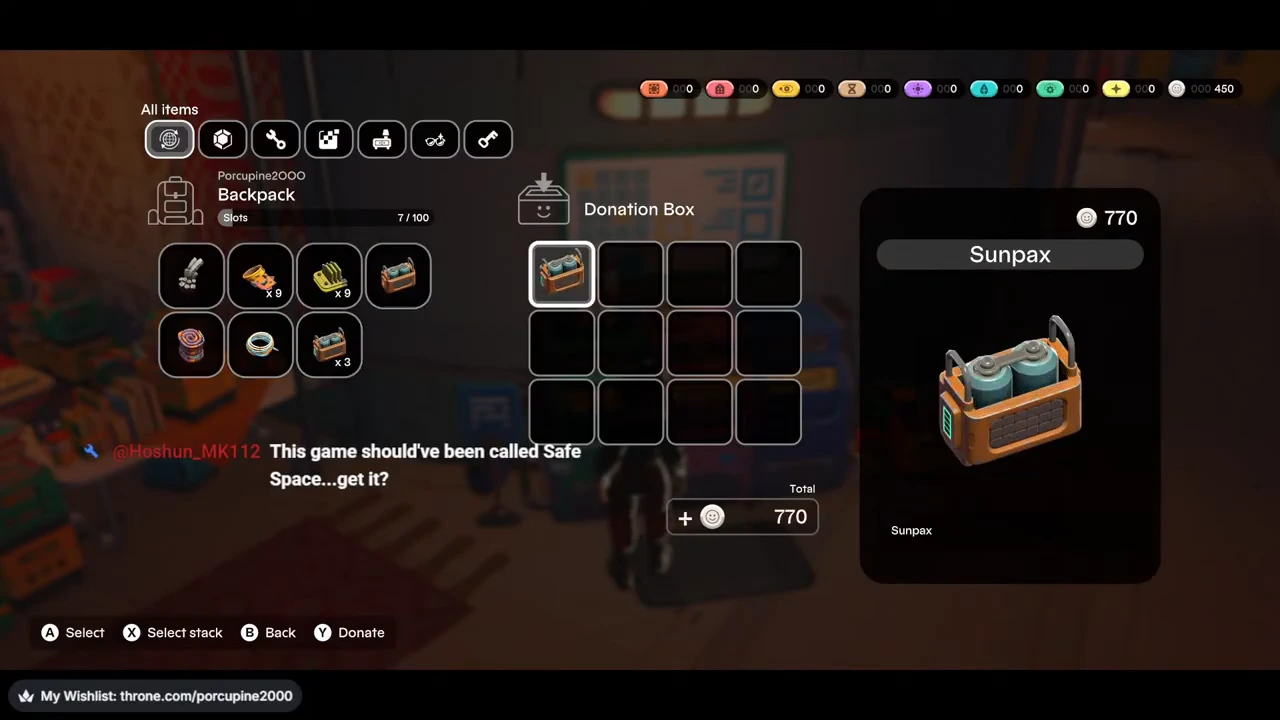
2. Keep three and stage one
Before continuing, inspect both panels. The demonstrated selection has one Sunpax in the Donation Box, three left in the backpack stack, and Total 770. If you accidentally used Select stack, select excess units in the box to return them until only the intended quantity remains.
The backpack still displays seven of one hundred slots with a three-unit stack remaining. Donating part of a stack therefore does not demonstrate freeing its inventory slot. Choose what to give based on your active task and the staged count, rather than expecting every donated unit to free a slot.
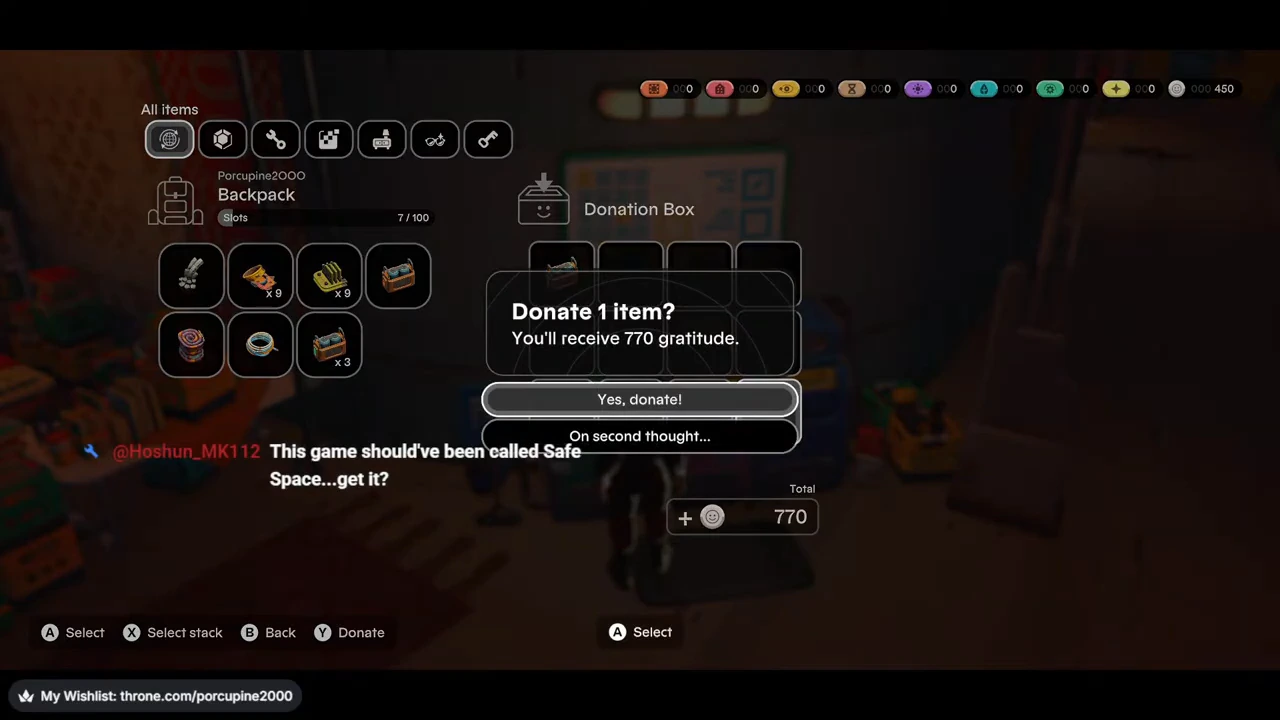
3. Confirm the count and reward
Use Y Donate after checking the basket. The confirmation asks to donate one item and displays a reward of 770 Gratitude. Choose Yes, donate with the select action only when those details match your intended donation. On second thought is the alternative if they do not.
This confirmation is a final quantity check. The 770 figure belongs to this visible Sunpax transaction, not a promise that another item or game build will have the same quote.
4. Read the result and return to Hermosa
After confirmation, the menu closes. The next frame shows +770, a completion tick on Donate sunpax and the First-Time Donator badge. Talk to Hermosa remains unchecked: the donation is complete, but the conversation is still the next task action.
These are the visible submission results. The recording does not reopen the box or show the final wallet balance at this moment, so use the reward notification and task tick without inventing a second inventory check.
Keep the broken mop for the workshop
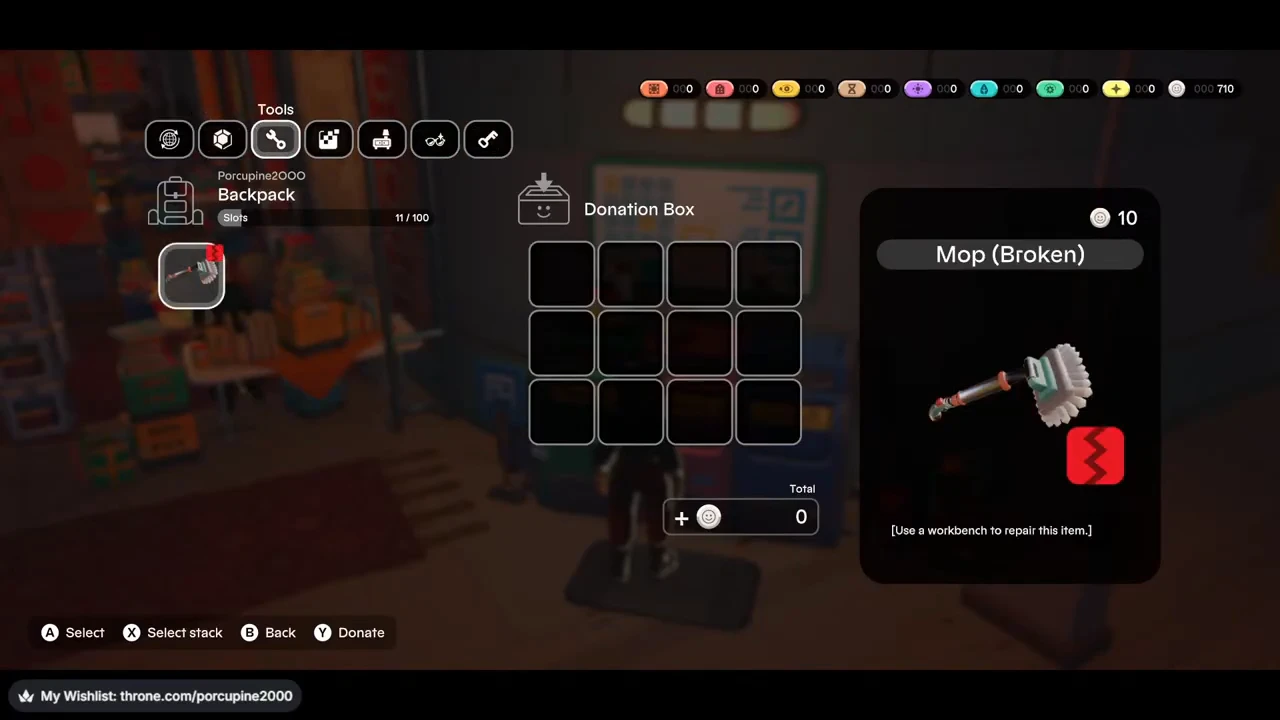
Mop (Broken) has a quote of 10 in the Tools filter, but the active Born to mop job still asks you to repair it. Keep that specific item and follow the workbench repair route, rather than donating it just because it looks broken. The quote alone says nothing about whether giving it away is useful for your current task.
Two milestones, two different measures
The Xbox list on Exophase, still titled Game Preview when checked, reports the following conditions. These listed thresholds are separate from the First-Time Donator badge shown above; this sequence does not demonstrate either threshold unlocking.
| Achievement | Listed condition |
|---|---|
| Big Giver | One donated item with a value of at least 1,000 Gratitude. |
| Thank You | 20,000 Gratitude obtained in total. |
What the examples establish
A basket of several cheaper objects is not evidence of the single-item condition above. Neither threshold identifies the best object to donate. The current wallet and lifetime Gratitude earned are also different measurements.
The illustrated Sunpax transaction demonstrates staging, confirmation and a reward notification. Its values are an observed example, not a stable item-value list for another build. The linked upload’s exact executable build and platform remain unverified.